
TL;DR
To make a home office chair comfortable for long days, support your feet, leave a small gap behind your knees, adjust the backrest and armrests, and bring your keyboard and screen within easy reach. A well-fitted chair can help, but regular position changes and short movement breaks matter too.
By midafternoon, a chair that seemed fine at breakfast can feel like a hard ledge under your thighs. Your shoulders creep upward, your feet search for the floor, and the screen seems to pull your head forward. Small changes to the chair and workspace can make the day feel easier.

Turn quiet afternoons into listening time
- Thousands of audiobooks, podcasts and originals
- Listen on your phone, tablet or Echo — also offline
- Cancel anytime
This guide walks you through a practical setup: how to fit the seat, support your back, place your work, and make room for movement. You can use it with an office chair, a dining chair, or a shared workspace at home. The aim is a supported, changeable posture, not a rigid pose you have to hold all day.
A chair is only one part of the picture. Your desk, screen, keyboard, and habits all affect comfort, too. You can start with adjustments you already have, then decide whether a footrest, cushion, or different chair would solve a specific problem.
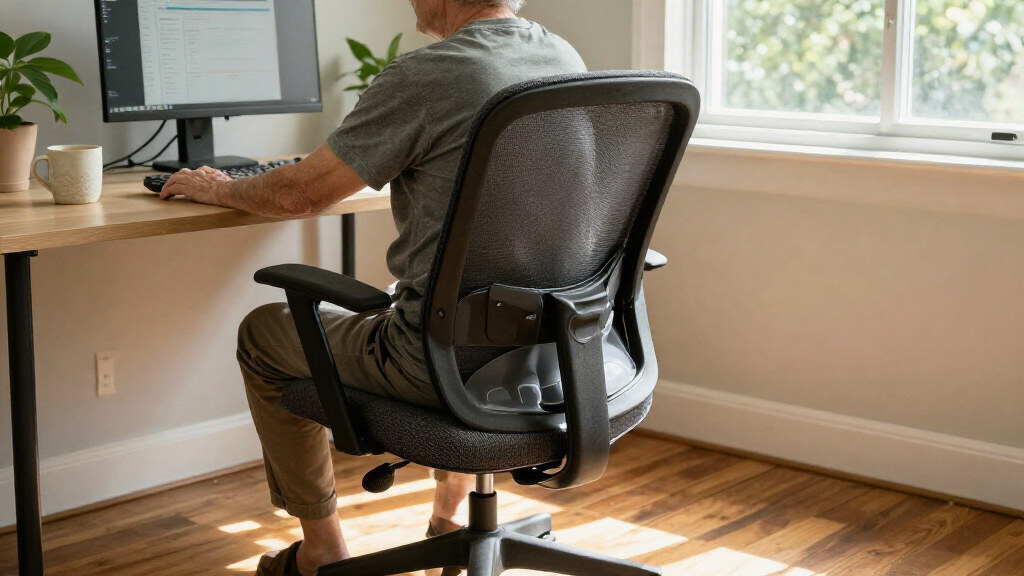
Set your chair so your feet are supported and your knees sit roughly level with or slightly below your hips.
When seated against the backrest, look for about two or three fingers of space behind your knees.
Adjust lower-back support and armrests until your back feels supported and your shoulders stay relaxed.
Bring your keyboard, mouse, and frequently used items within easy reach, then set the screen where you can look ahead comfortably.
Change position regularly; a chair, cushion, or standing desk cannot replace movement.
Make your home office chair comfortable for long days
A supportive setup fits your body and workspace, while leaving room to change position throughout the day.
Fit the seat
Start with supported feet and enough room behind your knees to sit back comfortably.
Rest them flat on the floor or a stable footrest, with knees roughly level with or slightly below your hips.
Sit against the backrest and leave about two or three fingers of space behind your knees.
Support your back and arms
Adjust to feel supported without forcing your body into one fixed position.
Meet your natural curve
Set lumbar support or a small cushion to support your lower back without pushing you into an exaggerated arch.
Let shoulders relax
Keep elbows near your sides and forearms lightly supported, without shrugging or leaning.
Bring work within easy reach
Your desk setup affects whether you can sit back comfortably.
- Keep the keyboard and mouse close enough to use with elbows near your sides.
- Position the screen so you can look ahead without repeatedly bending your neck.
- Recheck your feet and seat fit after adding a cushion or footrest.
Make room for movement
A well-fitted chair helps, but comfort also depends on your desk, tasks, and habits.
- Use a stable footrest if the chair must stay high for the desk.
- Try a cushion or recline setting only if it improves your fit.
- Shift position regularly.
- Stand, walk, or stretch during short movement breaks.
Set the seat so your feet feel steady
To make a home office chair comfortable for long days, start with a seat height that lets your feet rest flat on the floor or on a stable footrest, with your knees roughly level with or slightly below your hips. This gives you a steady base and makes it easier to sit back against the chair. If your feet dangle, the seat may be too high for you.
Adjust the chair while seated, not by guessing from across the room. Sit back, relax your shoulders, and check whether your forearms can reach the keyboard without lifting your elbows. If the desk is high enough that lowering the chair makes typing awkward, keep the chair at a workable height and add a stable footrest. A firm box designed to support your feet can work; a light object that slides away is less reassuring.
For example, imagine a shorter family member borrowing a desk set up for someone taller. Raising the chair to reach the keyboard may leave their feet swinging above the floor. Supporting the feet restores a more settled position without forcing the person to reach down to a desk that is too high.
After any change, check the whole setup again. A thick seat cushion raises you; a footrest changes how your legs rest. Comfort comes from the pieces fitting together, like a small puzzle whose parts affect one another.
Products Worth Considering

TCL 85-Inch QM64L QD-Mini LED 4K Smart Fire TV

Dyson Purifier Hot+Cool HP2 De-NOx

eufy C30 Robot Vacuum and Mop
As an affiliate, we earn on qualifying purchases.
Check seat depth before adding a cushion
A seat fits better when it supports your thighs without pressing into the backs of your knees. Sit with your back against the backrest and look for a gap of about two or three fingers between the seat edge and your knees. That simple check can help you spot a seat that is too deep or too short.
If the seat edge presses into your legs, you may find yourself sliding forward to escape it. That leaves your lower back away from the backrest. If the seat is too short, your thighs may feel as though they have little support. Not everyone will find the same chair comfortable, so use the finger-width check as a starting point and notice how the seat feels during ordinary tasks.
Consider a person working at a dining table in a chair that is deep enough for a taller relative. They sit at the edge to avoid pressure behind their knees, then spend the morning perched forward. A shallower chair or an adjustable seat may fit better. If neither is available, a cushion behind the back can sometimes help the person sit farther back, but it also takes up seat depth and changes back support.
Before buying anything, try a short work session and reassess. Ask: can you sit back, keep your feet supported, and avoid pressure behind your knees? A comfortable chair should offer useful support without making you hold yourself in one spot.
Make the backrest support your natural curve
Good lower-back support meets the natural inward curve of your back while you sit against the backrest. It should feel supportive, not intrusive, and it should not push you into an exaggerated arch. The right height and firmness depend on your body and the chair, so a setting that feels comfortable for one person may feel awkward for another.
Start by sitting back, then adjust the built-in lumbar support if the chair has one. If it does not, a small cushion may fill a gap. Avoid stacking bulky pillows without checking the rest of your fit: they can move you forward, shorten the usable seat, and change where your feet land.
Picture a person settling into a chair after lunch. Their lower back floats away from the backrest, so they lean forward to read the screen. A modest cushion placed where the back naturally curves might help them rest against the chair instead. If the cushion pokes or makes them arch, it is not the right fit; try moving it or remove it.
A recline feature can also give you another comfortable position. Set it so the backrest moves with you rather than snapping or pushing you forward. The idea is to let your posture shift over the day, not to hold your spine like a board. If pain is persistent, severe, or getting worse, ask a qualified healthcare professional for advice rather than relying on chair changes alone.
Relax your shoulders by fitting the armrests
Armrests should let your shoulders relax while your elbows stay near your sides. When the rests sit too high, they can nudge your shoulders upward; when they sit too low, you may lean toward one side or leave your arms unsupported. Adjust them until they meet your arms without making you shrug.
Try this at your desk: sit back, let your hands fall naturally, and bend your elbows. If the armrests are adjustable, raise or lower them so your forearms can rest lightly. Your shoulders should feel easy, not bunched beside your ears. If the armrests prevent you from getting close enough to the desk, lowering them or moving them inward may help.
For a real-world example, someone answering email at a wide desk may sit off-center to reach the mouse. One arm then rests on the chair while the other reaches outward, making the shoulders feel uneven by late afternoon. Moving the mouse closer and adjusting the armrests can reduce that awkward reach.
Armrests are optional support, not a requirement to keep your arms planted. If you prefer to type with your forearms lightly supported by the desk, check that the desk edge does not press uncomfortably into your arms. Small changes—moving the chair closer, changing armrest height, or shifting the mouse—can make long periods of typing feel less strained.
Bring your screen and keyboard within easy reach
A chair cannot feel settled if your work keeps pulling you forward. Keep the keyboard and mouse close enough that you can use them with your elbows near your sides, and place the screen where you can look ahead without repeatedly bending your neck. Reach and screen position matter because you spend hours interacting with them, not just with the chair.
Try a simple desk reset. Sit back, then bring the keyboard toward you until your hands land on it without reaching. Move the mouse beside it. Put frequently used items—glasses, notes, or a phone—within easy reach rather than at the far end of the desk. Adjust the screen height and distance so you can read comfortably; there is no single screen position that suits every person or every pair of glasses.
For instance, if you use a laptop on a low table, you may find yourself bending toward its screen while your hands hover high to type. A separate keyboard and mouse can let you raise the screen while keeping your hands in a more relaxed position. If that is not practical, take regular chances to shift and reset rather than staying folded toward the laptop for hours.
When you are making a home office comfortable with a dining chair or shared desk, keep the adjustments simple. Bring work closer, clear space for your feet, and check whether the chair can slide in without hitting armrests or table legs. A tidy reach zone can make the whole setup feel calmer.
Use short movement breaks to reset your posture
Movement is part of a comfortable workday because no chair can replace changing position. You do not need a perfect timetable: build in regular chances to stand, walk, stretch, or simply shift in your seat. A short change can be easier to fit into the day than trying to hold one posture for hours.
Choose cues that already happen. Stand after a video call, stretch while a document loads, or walk to refill your water when you finish a task. If you spend the morning on the phone, try taking a call while standing or pacing safely around the room. These small moments can break up a long stretch of sitting without turning your workday into a workout plan.
Imagine finishing a string of calls at 2 p.m. Your back feels tired, and your legs have barely moved. Instead of trying to fix the feeling by tightening the chair into one “correct” position, stand, take a few steps, and settle back into a different comfortable posture. If standing is difficult, shifting your weight and changing how you sit can still vary the position.
A sit-stand desk can offer another option, but standing all day is not a universal answer. Set both positions up with care and alternate in a way that feels manageable. If you have health or mobility concerns that affect standing or movement, ask a qualified professional for guidance tailored to you.
Choose add-ons only when they solve a clear fit problem
A footrest or cushion can help when it addresses a specific mismatch, but an add-on does not automatically make a chair more comfortable. A footrest can support feet when the chair must stay high enough for the desk. A lumbar cushion can fill a gap behind your lower back. A seat cushion may change how a firm seat feels, but it also raises you and reduces seat depth.
Before adding anything, name the problem. Are your feet unsupported? Does your lower back fail to meet the backrest? Does the seat feel uncomfortable after a short period? This keeps you from piling accessories onto a setup that needs one careful adjustment. After adding a cushion, recheck seat height, knee clearance, and whether you can still sit against the backrest.
For example, a person may add a thick cushion because a chair feels hard, then discover their feet no longer reach the floor. The cushion changed more than softness: it raised the whole body. A thinner cushion or a footrest may suit that setup better, depending on the desk and the person’s fit.
There is no universal winner between a hard and soft seat. The seat should feel supportive and comfortable for the length of time you use it. Likewise, a high price or an “ergonomic” label does not promise a good fit. Look for adjustments you can use and a chair that suits your body, desk, and everyday tasks.
Frequently Asked Questions
How high should my home office chair be?
Set it high enough for your forearms to reach the keyboard while your shoulders stay relaxed. Keep your feet flat on the floor or supported by a stable footrest, with your knees roughly level with or slightly below your hips. Recheck the fit after adding a cushion.
Where should lumbar support sit?
It should meet the natural inward curve of your lower back while you sit against the backrest. Adjust its height or firmness until it feels supportive rather than pushy. A small cushion can help if the chair has no built-in support, but check that it does not move you too far forward.
Can a cushion make an uncomfortable chair better?
Sometimes, if it solves a specific fit issue such as a gap behind your lower back or an overly firm seat. A cushion can also raise your seat and reduce usable seat depth, so check your foot support and the space behind your knees afterward.
Are ergonomic chairs worth the cost?
A chair with useful adjustments can help when those adjustments fit your body and workspace. The label and price alone do not guarantee comfort. Check whether you can set the seat, backrest, and armrests to suit your needs and tasks.
Is a standing desk better than sitting?
A standing desk can make it easier to alternate positions, but standing for long stretches can also feel uncomfortable. Set up both the sitting and standing positions so your work stays within easy reach, and change position in a way that feels manageable.
When should I replace my office chair?
Consider a replacement if important adjustments are broken or missing, the chair no longer feels stable, or you cannot make it fit your body and desk. If it still works, a careful setup change may solve the problem before you buy a new one.
Conclusion
Start with three checks: supported feet, room behind your knees, and a backrest that feels natural. Then bring your work closer and make space for regular position changes. These adjustments can often improve an existing setup before you shop for a replacement.
Your chair should help you settle in, not ask you to freeze in place. Find a position that feels steady, let your body move through the day, and give yourself room to reset—one small adjustment at a time.