
TL;DR

Turn quiet afternoons into listening time
- Thousands of audiobooks, podcasts and originals
- Listen on your phone, tablet or Echo — also offline
- Cancel anytime
Big-button remotes and simple electronic controls can make common tasks easier by using clear labels, well-spaced buttons, and fewer steps. Before choosing one, check compatibility, setup demands, and which functions the user needs; then try the controls together in the room where they will be used.
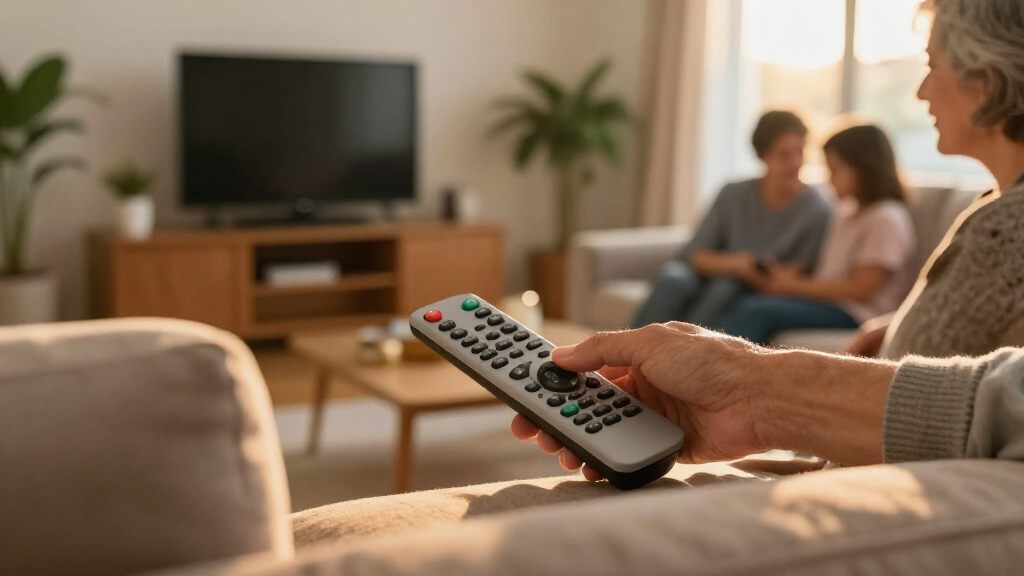
The television is on, but the volume keeps rising because the small buttons sit close together. A remote with large, spaced controls could make that familiar task easier—but button size alone does not make a control simple.
This guide explains what to look for in big-button remotes and simple electronics, from readable labels and tactile cues to compatibility and setup. You’ll find practical ways to match a remote to the person using it, check whether it can control the devices at home, and try it without turning a relaxing evening into a programming session.
These controls can support comfort and independence, but every person’s needs differ. Use the ideas here to start a conversation with the intended user, and ask an accessibility professional for help when choosing or configuring controls feels difficult.
Choose controls around the user’s frequent tasks; a shorter list of clear buttons can beat a feature-packed layout.
Check the exact device models and the specific functions needed, since “universal” does not promise full compatibility.
Try labels, contrast, spacing, tactile cues, and grip in the room where the remote will be used.
Treat setup as part of usability: test everyday commands, document what works, and keep original remotes nearby until the new routine is dependable.
Consider apps, voice controls, switches, or professional configuration only when those options match the user’s preferences and abilities.
A practical guide · Accessible controls
Big-Button Remotes and Simple Electronics
A better control is the one that makes familiar tasks easier to see, reach, and repeat. Match its layout and setup to the person who will use it.
01 / The principle
Simple means easy for this person
Button size helps, but simplicity comes from the whole experience: finding the right control, pressing it comfortably, and knowing the command worked.
See it
Clear labels and contrast
Readable words, familiar symbols, and strong contrast help a control stand out in the room’s usual lighting.
Reach it
Space and tactile cues
Well-spaced keys reduce accidental presses. A raised mark, rocker, or distinct shape can aid touch-based navigation.
Repeat it
Predictable placement
Keeping power, volume, and channel controls in consistent places makes a routine easier to learn and repeat.
A short set of obvious controls may work better than a feature-packed layout. Keep the functions the user needs often, and consider where less-used features will live.
02 / Choose by need
Match the controls to everyday use
Ask the intended user what feels clear. Vision, dexterity, memory, grip, and personal preference all shape what works.
Check labels in context
Try the remote from the usual seat, at the usual distance and lighting. High contrast helps, while small print and glossy glare can make keys harder to find.
Test spacing, weight, and grip
Broad, separated buttons may help with limited dexterity. Check the whole handset too: a large remote may be heavy, slippery, or tiring to hold.
Keep important keys consistent
Power at the top and grouped volume controls can become familiar landmarks. A new layout should offer enough benefit to justify learning it.
Prioritize frequent functions
List the common tasks first—perhaps power, volume, mute, and channels. Someone who often uses streaming menus may need a broader control set.
03 / Compatibility
Check the connection before setup
Identify the exact TV, set-top box, and streaming device models. Confirm support for each one and for the functions the user needs.
A TV may turn on while the remote still cannot navigate a streaming box. Check volume, mute, channel or input, and the menus the user actually uses.
04 / Setup and routine
Make the first test count
Setup is part of usability. It may mean entering codes, pairing devices, or teaching commands from an original remote.
List the devices
Write down model names and the commands needed for daily routines.
Confirm the method
Check compatibility, pairing, code, learning, hub, app, or network requirements.
Try it together
Practice common commands in the room where the remote will be used.
Keep a fallback
Note what works and keep original remotes nearby until the routine is dependable.
Can the user find and repeat the commands they want without someone stepping in?
Observe the routine; let the user lead.05 / Before you choose
A practical checklist
A remote is a convenience aid. When choosing or configuring controls feels difficult, an accessibility professional can help assess the options.
- Tasks: Which commands matter most each day?
- Fit: Are labels, spacing, shape, and grip comfortable?
- Devices: Do exact models and needed functions appear in compatibility details?
- Setup: Are codes, pairing, learning, or a hub required?
- Dependencies: Does it need Wi-Fi, a smartphone, an account, or ongoing charging?
- Fallback: Can original remotes stay available during the transition?
Custom buttons, switches, apps, or voice control may help when they match the user’s preferences and abilities. Consider setup needs too: apps can require a phone or network, and voice control can be difficult in noisy rooms.
What makes a remote feel simple in everyday use?
A simple remote makes the user’s most common tasks easy to see, reach, and repeat, with fewer unnecessary choices in the way. Large buttons help, but spacing, label clarity, placement, and feedback matter just as much. A person who wants to turn on the television and adjust volume may prefer a short row of obvious controls over a handset crowded with tiny buttons. The benefit comes from reducing the effort of finding and pressing the right control, not from size alone.
Think of a remote as a small map: familiar landmarks make it easier to find your way. If power always sits at the top and volume controls stay together, the user can build a routine. That consistency reduces the need to read every label or remember a changing sequence. In contrast, a large button with a vague icon or an unexpected function can add confusion, even if it is easy to press. A layout that is visually simple but groups unrelated functions together may still be hard to navigate.
For example, imagine your father has trouble distinguishing closely packed buttons. He may find a high-contrast power button and separated volume keys easier to use than a bigger remote where every key has the same color and texture. But if he relies on touch more than sight, tactile differences may matter more than color. Try the actual controls together and ask which ones feel clear; don’t assume your preference matches his. The way he searches for a control can show whether the design helps him act independently or makes him rely on someone else.
Some models let a caregiver or installer prioritize a handful of functions. That can help people operate a television without sorting through buttons for menus or streaming services they rarely use. The tradeoff is that less-used functions may take extra steps or remain available only on another remote. Keep in mind that a familiar layout can matter more than a long feature list: switching to a new arrangement may take practice, so the gain in simplicity should justify the learning effort.
Products Worth Considering

Levoit Core 400S-P Smart Air Purifier for Large Rooms

Dyson V8 Cyclone Cordless Vacuum

Sonos Era 100 SL Compact Microphone-Free Speaker, White
As an affiliate, we earn on qualifying purchases.
Which button details make controls easier to find?
Big-button remotes are easier to use when each important control stands out through size, spacing, contrast, label, or feel. Large keys can be easier to press, but their usefulness depends on whether the user can tell them apart. A distinct volume rocker, for instance, may be easier to locate by touch than two identical keys packed beside power. Spacing also reduces accidental presses, which can matter when a misplaced button changes the input or opens a menu and interrupts the task.
Look for labels the person can read in the room’s usual lighting. White letters on a dark button may stand out better than low-contrast gray on silver. High contrast can help the eye find a key quickly, but it cannot compensate for labels that are too small or unfamiliar. Tactile marks, such as a raised dot or a different button shape, can offer another clue when the user does not want to rely only on eyesight. These cues are most useful when they are consistent; a raised mark that appears on an unexpected control can lead to mistakes.
Consider a living room where a lamp casts a warm pool of light across the couch, but the television screen leaves the remote in shadow. A bright, high-contrast label can help there; a glossy surface that catches glare may work less well. If the user has limited dexterity, a broad button with room around it may be easier to press without hitting the neighboring control. However, a larger handset may be heavier or harder to grip, so button dimensions and the whole remote’s shape should be considered together.
Make a short list of the tasks the user performs most often, then compare controls against that list. Prioritize clarity over button count. The user may need power, volume, mute, and channel controls every day, while a long menu of rarely used features adds more to learn. Removing those choices can make routine actions easier, though someone who frequently uses streaming menus may need more controls than a basic layout offers.
- Check the labels at the distance and lighting where the remote will be used.
- Feel the spacing between common controls and note any raised or differently shaped keys.
- Test the grip and weight; a remote that slips or feels tiring can be hard to keep using.
How can you check compatibility before setup?
A remote works only when its control method and programming support the devices it needs to operate. Before you choose one, identify the exact television, set-top box, or streaming device models and check the remote maker’s compatibility information. “Universal” describes a goal; it does not promise support for every brand, model, or function. This distinction matters because partial compatibility can look successful at first: the television may turn on while the user still cannot reach the streaming service they want.
Remotes may send commands using infrared (IR), radio frequency (RF), Bluetooth, or a device-specific method. These approaches differ in how they connect and what equipment they control. An IR remote typically needs a clear path to the receiver, which can be inconvenient if the device is inside a cabinet or out of sight. Other control arrangements may pair with a device or use a hub, adding steps or equipment that must be powered and maintained. Read the instructions for the specific remote and equipment rather than guessing from appearance.
Suppose your television turns on with its original remote, but your streaming box uses Bluetooth. A replacement remote might control power and volume on the television yet fail to move through the streaming menus. That partial result is easy to miss if you check only whether the screen lights up. Write down the functions you need—such as power, volume, mute, home, and play/pause—and confirm each one where compatibility details are available. This list turns a broad claim of compatibility into a practical check tied to the person’s routine.
Some setups use brand codes; others teach the new remote commands from an original handset or rely on a hub to translate between equipment. Those extra steps can be manageable, but the setup itself may be the biggest hurdle, especially if it requires equipment the user does not want to use every day. Keep original remotes nearby until you have confirmed the important functions work reliably. They provide a fallback while you identify missing commands and help avoid losing access to a device during setup.
How do you choose between a basic remote and a universal one?
A basic remote usually focuses on a smaller group of everyday controls, while a universal remote aims to operate more than one device. The right choice depends on whether the user values a straightforward layout or wants fewer handsets on the table. Combining controls can clear clutter and reduce the need to pick up the right remote, but it can also add setup, buttons, or modes that the user must understand.
Picture a coffee table holding separate remotes for the television, cable box, and sound system. A universal model might bring common functions together, which can make the evening routine easier to follow. But if it adds menus or keys the user rarely touches, the single remote may feel more complicated than the three familiar ones. There is also a practical tradeoff: when a combined remote is misplaced or needs reprogramming, several devices may become harder to control at once.
Compare the options by the tasks the person actually performs. A basic remote that reliably adjusts television volume may be enough if someone else handles streaming menus. A universal remote could be useful when the user routinely switches inputs, controls a set-top box, and changes sound settings independently. Control scope matters more than the label; check whether the model handles the needed devices and functions. The best fit is the one that removes steps from the user’s routine without adding a new sequence they must remember.
| Option | May suit you when | What to check |
|---|---|---|
| Basic remote | You want a few familiar controls | Which functions it supports and whether it matches the device |
| Universal remote | You want to combine several controllers | Exact device support, setup steps, and whether menus remain easy to use |
| Remote with a hub or app | Your devices need a shared control system | Network, phone, account, pairing, and maintenance requirements |
A comparison table can narrow the choice, but try the layout with the person who will use it. Ask them to find power, volume, and one other frequent function without prompting. That small practice run can reveal whether consolidation helps or creates a new puzzle. It also shows whether the tradeoff is worthwhile for this person, rather than assuming fewer remotes automatically means easier use.
What should you expect from setup and daily maintenance?
Setup can range from entering a device code to pairing equipment or teaching commands one by one. A remote that seems simple at first glance can still require patient configuration before the first button press works. Look for clear instructions and decide who will handle setup and future adjustments. This matters because a system that only one caregiver knows how to reset may become difficult to use when that person is away.
Try a calm, step-by-step setup session rather than rushing through it between television programs. First gather the device model numbers and original remotes. Then follow the instructions for one device at a time, checking each important command before moving on. If the volume button works but the home key does not, note exactly what failed so you can consult the manual or support information. Testing in stages makes it easier to find the cause of a problem than changing several settings at once.
For example, a caregiver might set up a new controller on a quiet afternoon, then ask the intended user to turn on the television and adjust the volume without help. If a step feels unclear, write down the snag and pause. Setup should leave a usable routine, not a remote that only the person who programmed it can operate. Having the user practice the routine also reveals whether the instructions or control arrangement need to change before the old remote is put away.
Think about batteries and accidental presses, too. Check what battery type the remote uses and whether the instructions explain low-battery signs. A caregiver could mark a regular calendar reminder to check the batteries, especially if the remote is used every day. A sturdy case, a safe storage spot, and keeping the original remote as a backup can make small maintenance problems easier to solve. The goal is to keep the control dependable without adding so much upkeep that the simpler option becomes another source of work.
- Gather the models of the television and any box or sound equipment.
- Follow the setup method in the remote’s instructions for each device.
- Test everyday tasks from the seat where the user will operate the remote.
- Record the working steps and keep original controls available until the setup is dependable.
When should you look beyond a standard remote?
A standard remote is one option among several ways to control household electronics. If the user struggles to reach, distinguish, or press its controls even after trying a simpler layout, other approaches may fit better. The goal is a comfortable, dependable way to complete daily tasks while respecting the user’s preferences. Looking beyond a remote is useful when its basic physical demands remain a barrier, but the alternative should not introduce demands the person finds harder.
Smart-home systems and companion apps can combine controls, but an app may require a smartphone, an account, a network connection, and comfort with a touchscreen. That is a lot of prerequisites for someone who would rather press one clear button. Voice control can be useful for some people, yet background television noise, speech-related needs, or hearing-related needs may make it less dependable in a particular home. These options may offer more flexibility, but they can also depend on connectivity, setup, and ongoing familiarity.
For example, a person who already uses a tablet comfortably might prefer an accessible app with larger on-screen controls. Someone who does not want a phone beside the couch may favor a physical remote with a simple layout. A switch-access control or professionally configured environmental-control system could be worth discussing when ordinary remotes and apps do not meet the person’s needs. Professional configuration can make access more tailored, though it may involve added equipment and support that should be weighed against the everyday benefit.
Match the tool to the person and the room, not to a trend. Try options with the intended user and seek an accessibility professional’s input when choosing or configuring controls becomes challenging. A remote is a convenience aid; it does not replace emergency equipment or a formal assessment when more specialized support is needed.
A helpful control is one the person can find, use, and trust during an ordinary evening.
How can you make a new remote easier to learn?
A new remote is easier to learn when you introduce only the controls the user needs first and practice them in a familiar setting. Put the remote where the person naturally reaches for it, then show one task at a time. A predictable routine can feel like a well-worn path: each step leads to the next without asking the user to remember a maze of options. Starting small makes practice manageable while showing whether the layout supports the actions the person wants to do independently.
Start with power, volume, and mute if those are the regular tasks. Let the user press the buttons rather than taking the remote and demonstrating every step yourself. If the person prefers a written cue, make a short card with plain words such as “Power: top button” and place it near the television. Keep the card readable and limited to a few useful actions. A cue can support confidence while a routine is new, but if it becomes necessary for every press, the labels or layout may need another look.
Imagine your aunt has always used the television’s original remote. When you introduce a simpler controller, she may reach for the old handset out of habit. Keep both nearby for a short while and practice the new one during a relaxed program, not while guests are waiting or a favorite show is starting. Familiarity grows through repetition, and the user should set the pace. The old remote provides reassurance during the transition, while gradually using the new one helps establish a reliable routine.
Notice what causes hesitation without treating it as failure. Perhaps the labels are hard to read from the chair, or the remote slides between cushions. Adjust the setup: improve the lighting, choose a consistent place to store it, or revisit whether the button layout suits the user. This turns a small frustration into useful information about the home and the control. If the same hesitation keeps returning, more practice may not solve it; the design or placement may need to change.
Frequently Asked Questions
Check the remote’s compatibility information against the exact models of your television and streaming device. Confirm each function you need, since a remote may control power or volume but not streaming menus. Keep the original controls until you have tested the full routine.
Can one remote replace several remotes?
Often, a universal remote can combine controls for multiple devices, but support varies by model and function. You may still need an original remote, app, or hub for some features. Compare the setup demands and button layout with what the user needs each day.
Are bigger buttons always easier to use?
No. Size can help, but spacing, contrast, labels, placement, tactile differences, and grip also matter. Try the remote in the usual lighting and ask the intended user to find and press their common controls.
Do simple remotes need Wi-Fi or a smartphone?
Many basic remotes do not need either, while app-based systems and some hubs may require a network, phone, or account. Check the setup instructions before choosing. If the user wants a physical control with no phone nearby, make that a priority in your search.
What can I do if setup feels difficult?
Gather the device model numbers, follow the remote’s instructions one device at a time, and test key functions as you go. Keep notes about commands that do not work and leave the original remotes available. If ordinary controls remain hard to configure or use, ask an accessibility professional about other options.
Conclusion
Start with the person, not the product description. List the few tasks they want to handle, check that a remote supports those functions on the equipment at home, and try its layout together in the living room.
The best control is the one that makes a familiar evening feel familiar: a clear button, a steady click, and the program starting when the user chooses.